Experiencing slow internet on a Windows Server VPS can negatively affect performance, user experience, and productivity. The root cause may be high resource usage, misconfigured network settings, or external congestion. In this guide, you’ll learn how to identify and resolve internet lag using Ping & Traceroute tests and by optimizing TCP/IP settings.
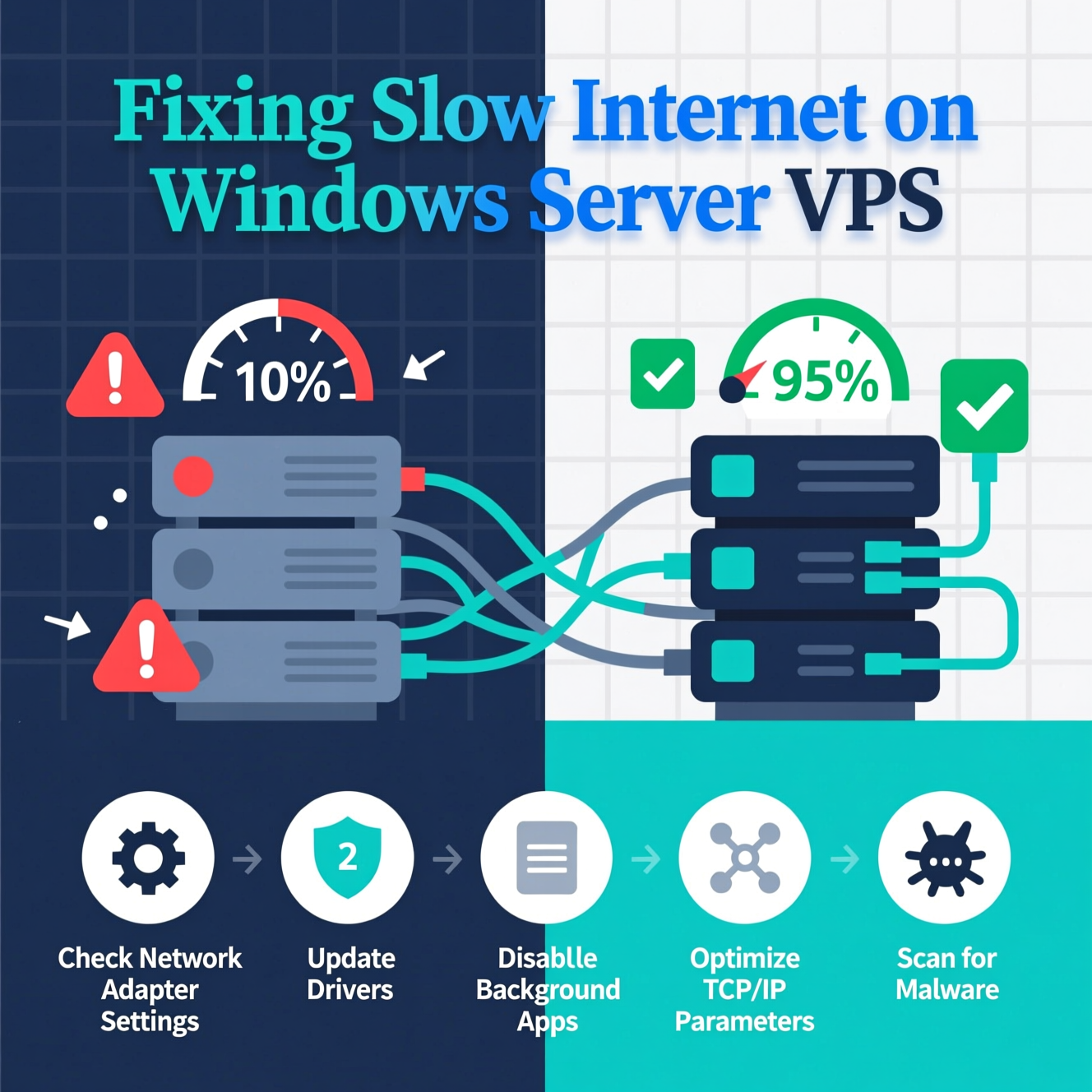
The first step is to diagnose whether the issue comes from your VPS, your local connection, or the network path between them.
On your local computer, open Command Prompt.
Enter:
Check the time values. Lower values mean faster connections. High or inconsistent numbers point to latency problems.
In Command Prompt, type:
This displays each “hop” between your device and the VPS.
If one hop shows unusually high latency, that node may be the bottleneck.
???? SEO Tip: Including terms like ping and traceroute in your content helps target users searching for VPS connectivity troubleshooting.
If network path issues aren’t the cause, tuning your server’s TCP/IP configuration can improve throughput and stability.
Open Command Prompt as Administrator.
Run:
This lets the server adjust buffer sizes dynamically for better performance.
Go to Device Manager → Network Adapters.
Right-click your adapter → Update driver.
Updated drivers ensure compatibility and reduce connection issues.
Enable these options for improved performance:
Receive Side Scaling (RSS) – balances traffic across multiple CPU cores.
Large Send Offload (LSO) – offloads packet segmentation to the NIC.
Increase Receive Buffers – reduces dropped packets during high traffic.
Use faster public DNS servers for quicker lookups:
Google DNS: 8.8.8.8 / 8.8.4.4
Cloudflare DNS: 1.1.1.1
Monitor VPS Resources: High CPU, RAM, or disk I/O usage can slow down the network.
Apply Updates: Keep Windows Server and drivers up to date.
Review Firewall Rules: Misconfigurations may throttle connections.
Contact Your VPS Provider: If latency is external, the issue may lie with the host’s infrastructure.
Resolving slow internet on a Windows Server VPS requires identifying whether the issue comes from your VPS, your local network, or your provider’s infrastructure. Running ping and traceroute tests helps pinpoint the problem, while optimizing TCP/IP settings, updating drivers, and configuring DNS servers can significantly improve network performance.
هل تحتاج إلى Windows VPS سريع وآمن وبسعر مناسب؟
شركة EgyVPS بتوفرلك سيرفرات ويندوز جاهزة للاستخدام فورًا.
تواصل معنا عبر: 201001197157+
أو زور موقعنا: https://egyvps.com
 2019 - 2023 © WELNIZ.LTD. All rights reserved.

 United Arab Emirates (Arabic)
 Worldwide (English)